Explore Computer Data Storage Device Types
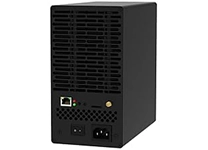
Computer data storage devices preserve files, applications, operating systems, and backups, either inside a computer or as separate accessories. Common options include internal hard disk drives (HDDs), solid-state drives (SSDs), external drives, USB flash drives, memory cards, and network-attached storage (NAS). Each suits different needs: an internal drive supports everyday computing, while portable storage makes it easier to move files between compatible devices. Memory cards are commonly used with cameras and other compact electronics, and NAS systems can provide shared storage across a home or workplace network. Storage capacity, connection type, portability, and intended workload are useful starting points when comparing products. Understanding these categories helps narrow a broad selection to devices that fit your setup, file sizes, and preferred way of accessing data.
- Compare internal and portable storage formats
- Match capacity to files and intended use
- Check device compatibility before purchasing
Compare HDD, SSD, and Portable Storage
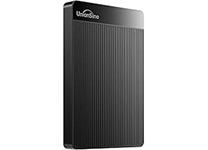
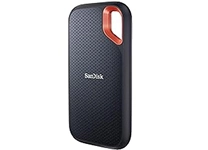
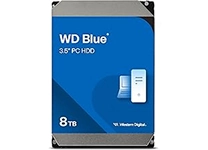
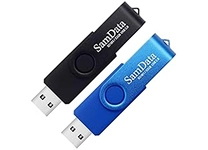
HDDs store data on spinning magnetic platters and are often considered for large-capacity storage, archives, and backups. SSDs use flash memory and have no moving parts, making them a popular choice for operating systems, applications, and responsive everyday computing. External HDDs and SSDs connect through interfaces such as USB, with performance depending on the drive and the connection standard supported by the host device. USB flash drives offer compact file transfer, while memory cards use formats such as SD and microSD for compatible equipment. When comparing options, consider capacity, read and write speeds, durability, size, and whether the device is intended for frequent access or occasional backup. Ubuy provides a way to discover computer storage products from international selections and compare formats for different setups.
- HDDs suit capacity-focused storage needs
- SSDs offer flash-based, responsive storage
- Portable drives support file transfer and backup
Key Features, Interfaces, and Compatibility
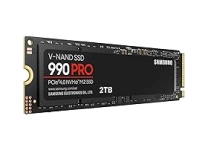
A storage device should match both the computer's physical connections and its intended workload. Check whether an internal drive uses SATA or an M.2 slot, and confirm that an M.2 SSD supports the interface required by the motherboard, such as SATA or NVMe over PCIe. For external devices, USB-C describes a connector shape, while USB data standards affect potential transfer performance; the host port and cable can also influence results. Capacity is usually listed in gigabytes or terabytes, and advertised speed is not the same as sustained performance in every task. Consider operating system support, drive dimensions, available bays, and whether setup requires formatting. For shared storage, assess NAS drive compatibility, network connection options, and the needs of users who will access the files.
- Confirm SATA, M.2, NVMe, and USB support
- Check capacity, speed, size, and host ports
- Review OS and NAS compatibility
Storage for Backup, Gaming, and Everyday Work
Different activities place different demands on computer storage. A laptop upgrade may prioritize a compatible internal SSD and sufficient room for the operating system, software, and personal files. Gaming libraries and creative projects can require substantial capacity, while fast storage can help with loading and handling large files; performance also depends on the computer and application. External drives are useful for backup copies, transferring media, or adding space without opening a computer. USB flash drives suit quick, portable transfers, and memory cards support compatible cameras and devices. A NAS can centralize files for several users, but it requires network setup and a suitable drive configuration. Before buying, estimate current storage use, allow room for future files, and decide how frequently data needs to be accessed or backed up.
- Choose storage around your primary workload
- Plan capacity for current and future files
- Consider backup and shared-access needs
Materials, Durability, and Storage Care
Storage devices differ in construction and their tolerance for everyday handling. Portable SSDs and flash drives use solid-state memory, while portable HDDs contain moving components that call for more careful handling. Enclosures may use plastic or metal, and some models include design features intended to help protect the device; check product specifications rather than assuming a particular level of protection. Keep drives away from moisture, excessive heat, and physical impact, and use a suitable case when carrying them. Eject external storage safely when the operating system provides that option, and avoid disconnecting a drive during active transfers. For important files, maintain more than one backup copy and periodically check that backed-up data can be accessed. Ubuy helps shoppers explore international computer storage options and compare product details for their needs.
- Handle HDDs carefully during use and transport
- Check enclosure details and product specifications
- Maintain and periodically verify backup copies
Select the Right computer data storage devices
Start by identifying the device you will connect or upgrade, then confirm its supported form factor, interface, and operating system requirements. Choose an internal SSD for a compatible computer upgrade, an HDD when capacity is the main priority, or an external SSD or HDD for portable expansion and backup. For small transfers, compare USB flash drives by capacity and connector; for cameras, match the memory card format and supported speed class to the device. NAS buyers should consider network needs, drive bays, and intended users. Compare capacity, read and write performance, dimensions, included cables, and manufacturer specifications rather than relying on one feature alone. Brands such as Samsung, Western Digital, Seagate, Kingston, and SanDisk offer products across several storage categories. A clear shortlist makes it easier to choose a device that fits your budget and workflow.
- Verify the computer or device requirements
- Balance capacity, performance, and portability
- Compare specifications across suitable products